Docker - App
Feature Overview
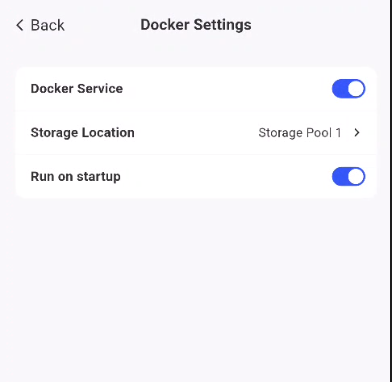
On a NAS, Docker can be used to quickly deploy various services and applications, such as personal blogs, download tools, private cloud note-taking apps, and DDNS resolution services.
With Docker, users can flexibly create, run, and manage multiple independent application containers on their NAS, enabling “multipurpose use” and transforming the NAS from a mere storage device into a powerful multi-application platform.
Definitions of Terms
Before using Docker on a NAS, you may need to understand some common Docker terms:
● Project (Docker Compose): Docker Compose is a Docker tool specifically designed to define and manage multi-container Docker applications, simplifying the deployment and management of complex applications. In short, it allows you to describe an application’s multiple services, networks, storage, and other configurations in a single YAML file, and then start all services with a single command.
● Container: A container is a running image and serves as the operational unit of Docker. Through containers, you can run applications; each container runs independently in a relatively isolated environment, ensuring that multiple containers do not interfere with one another.
● Image: An image is the foundation of a Docker container. It acts as a template for an application, containing the files and environment required for the application to run. Every time you create a container, it is generated based on a specific image. Images are read-only; you can obtain various images from public repositories such as Docker Hub, or create your own.
● Network Mode: Docker supports multiple network modes. Depending on your needs, you can configure a container’s network to share the host’s network, or isolate the container from external networks using bridge mode.
● Data Volume: The total size occupied by containers and images.
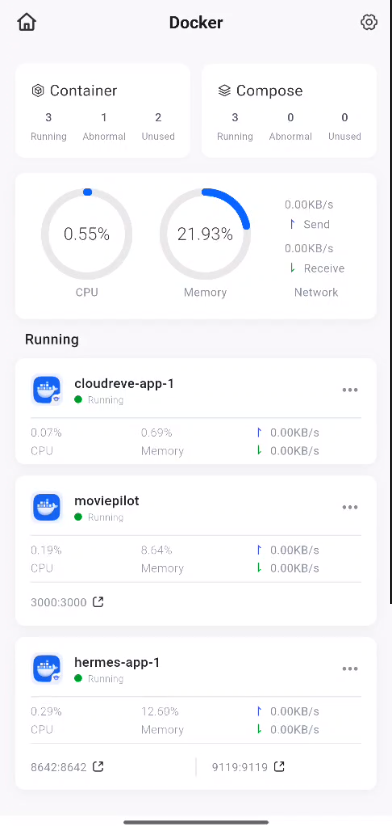
Click the settings button in the upper-right corner to access the settings page. The page features are shown in the figure below:
Enable Docker Service: Use the toggle switch to turn the Docker service on or off. When turned off, all containers will stop running.
Storage Location: Set the storage path for Docker images and container data. You must restart the service for the changes to take effect.
Start on Boot: Use the toggle switch to set whether the Docker service automatically starts when the system boots.